Trusty Pay users present their Trusty Pay payment code to the merchant. Merchants scan the code to take the payment. Cashiers can use Quick Pay to accept payments within 1-2 seconds without the need for any cash or change, increasing efficiency and avoiding cashier errors. Quick Pay means that a user shows his or her payment code in Trusty Pay to the cashier, which the cashier scans to complete the payment. Quick Pay is suitable for in-person payment collection in physical stores such as department stores, convenience stores, restaurants, hospitals, schools, cinemas, tourist attractions and other physical places that have clear business addresses.
How to set up Trusty Pay
Merchants have access to this feature by default after signing up with Trusty Pay.
User payment flows
-
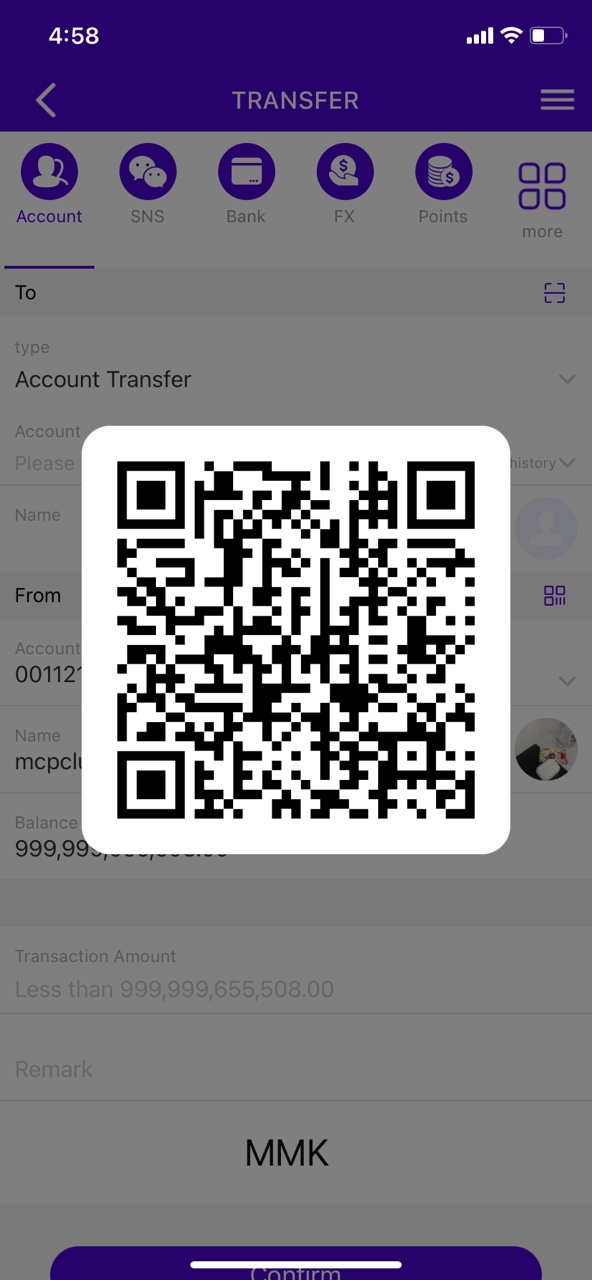 01. User opens Trusty and displays their Quick Pay code.
 -
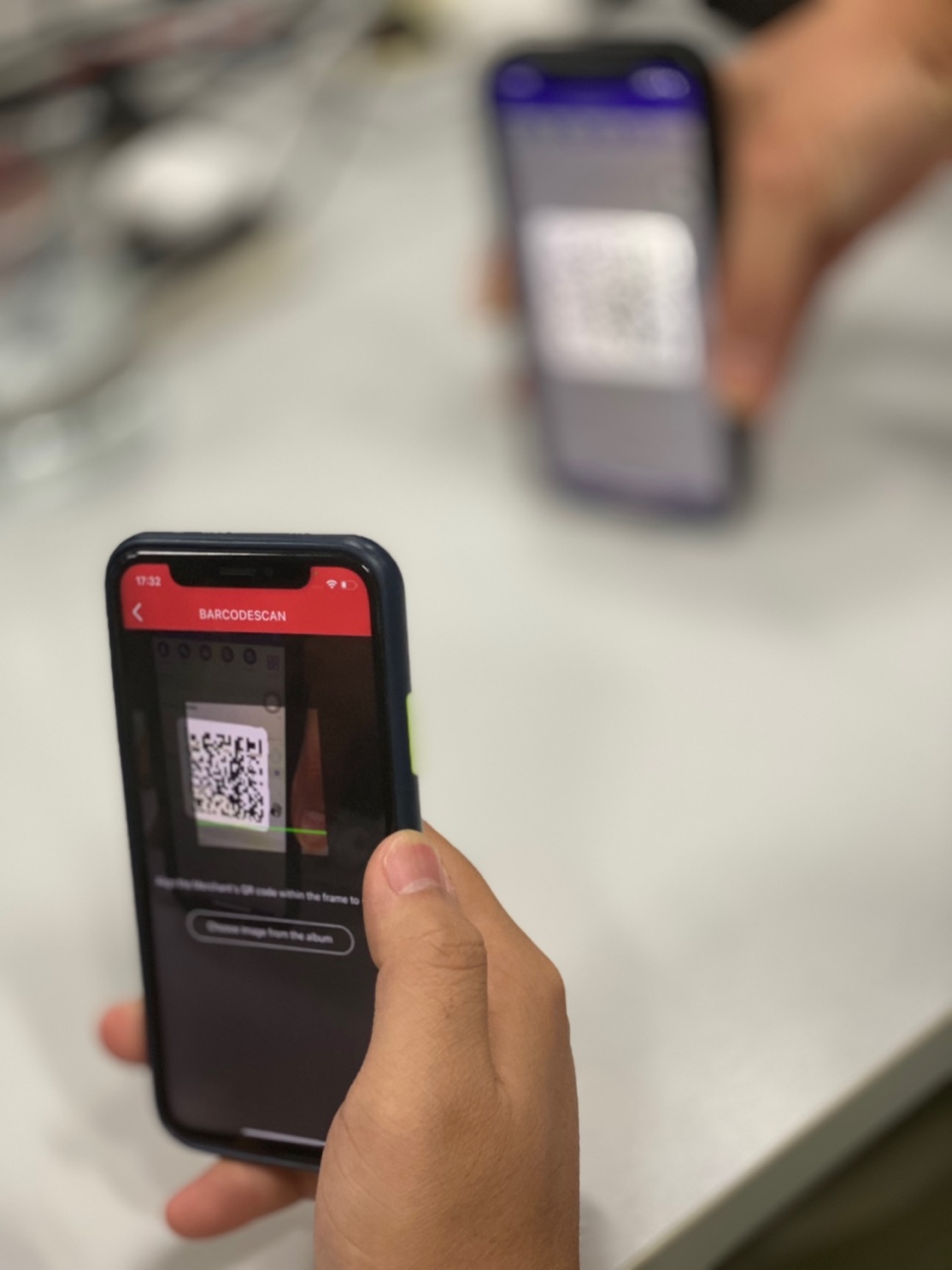 02. Merchant scans Quick Pay code.
 -
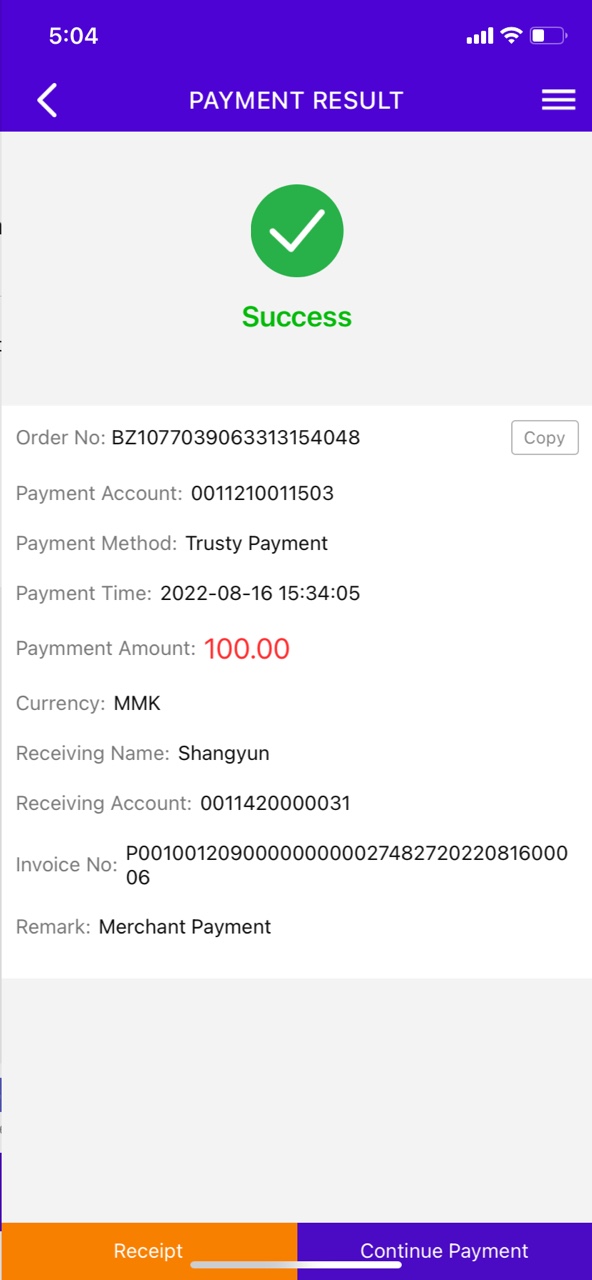 03. Payment is completed and confirmation sent to the merchant and user.
Merchants generate their own individual payment collection QR code. Users open Trusty to scan the code, confirm the amount, and make the payment after passing the security checks.
This product is designed for merchants without code scanners or other cash registers that can be used to collect money. It can be used in both physical stores and on online websites. Merchants have their own fixed payment collection codes. After a user uses Trusty to scan the code, the amount is entered and the payment is completed. Payment collection codes can also incorporate key order information to generate a unique QR code for one particular order. The user does not need to enter the amount after scanning the code, and the payment can be made after the security checks are passed.
How to set up Trusty Pay
Merchants have access to this feature by default after signing up with Trusty Pay.
User payment flows
-
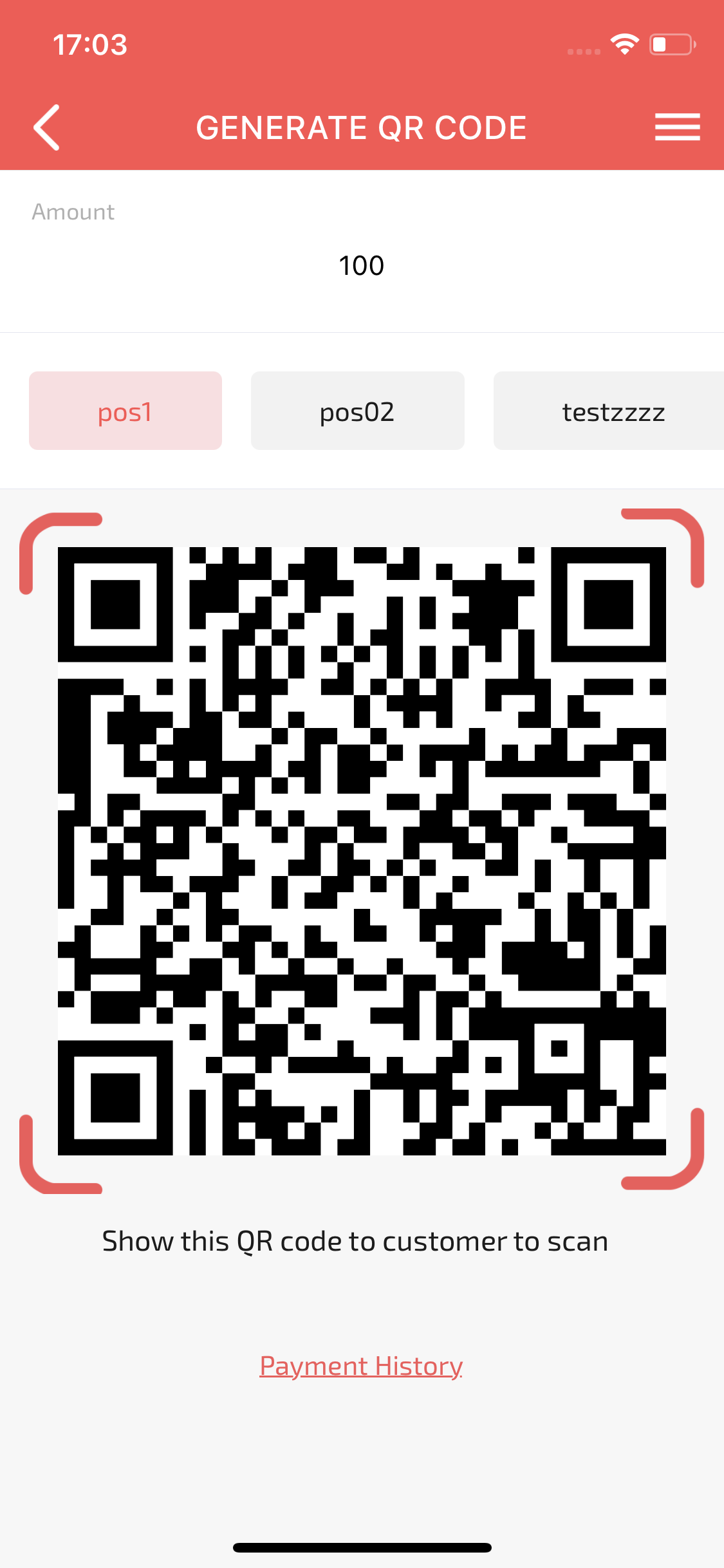 01. User goes to 'Scan QR Code' in Trusty and scans merchant's QR Code.
 -
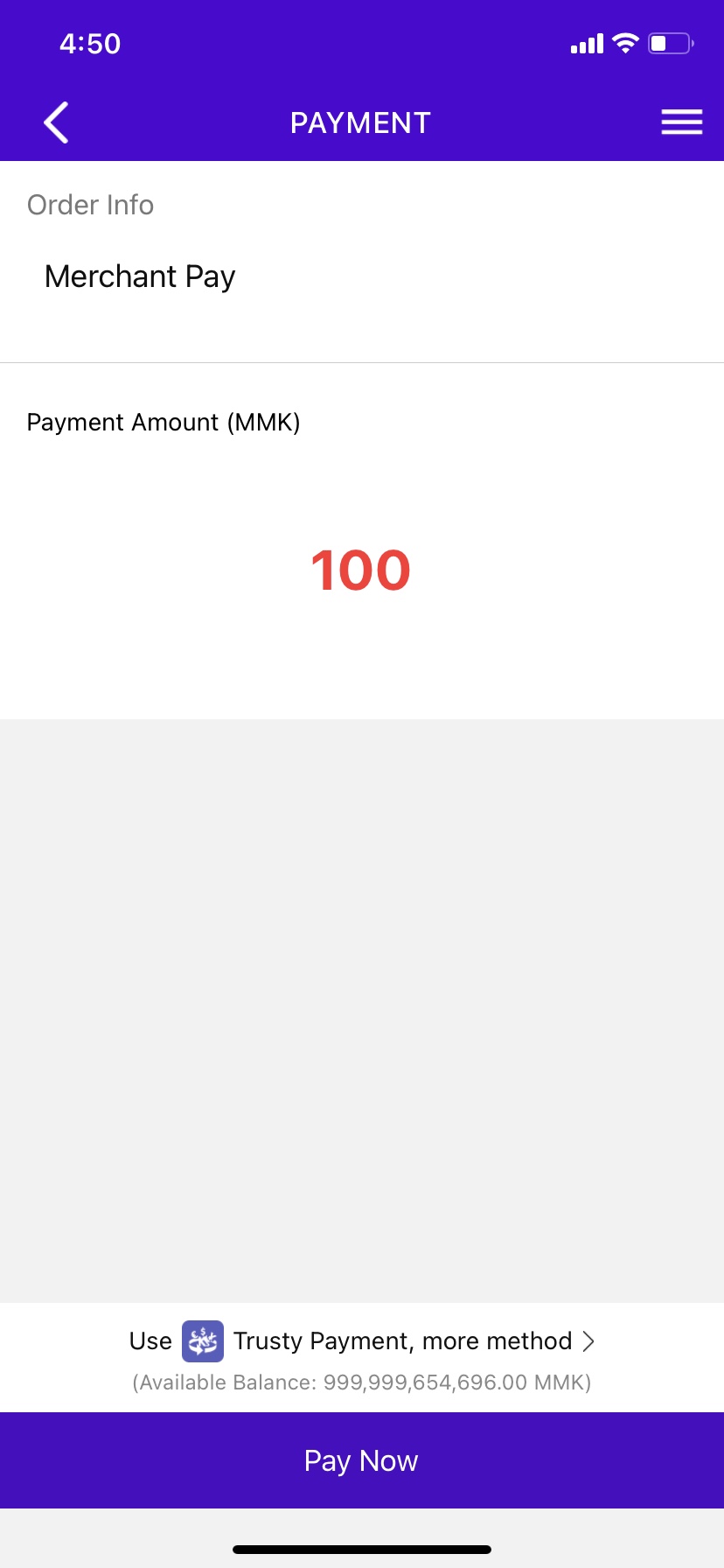 02. User enters transaction amount.
 -
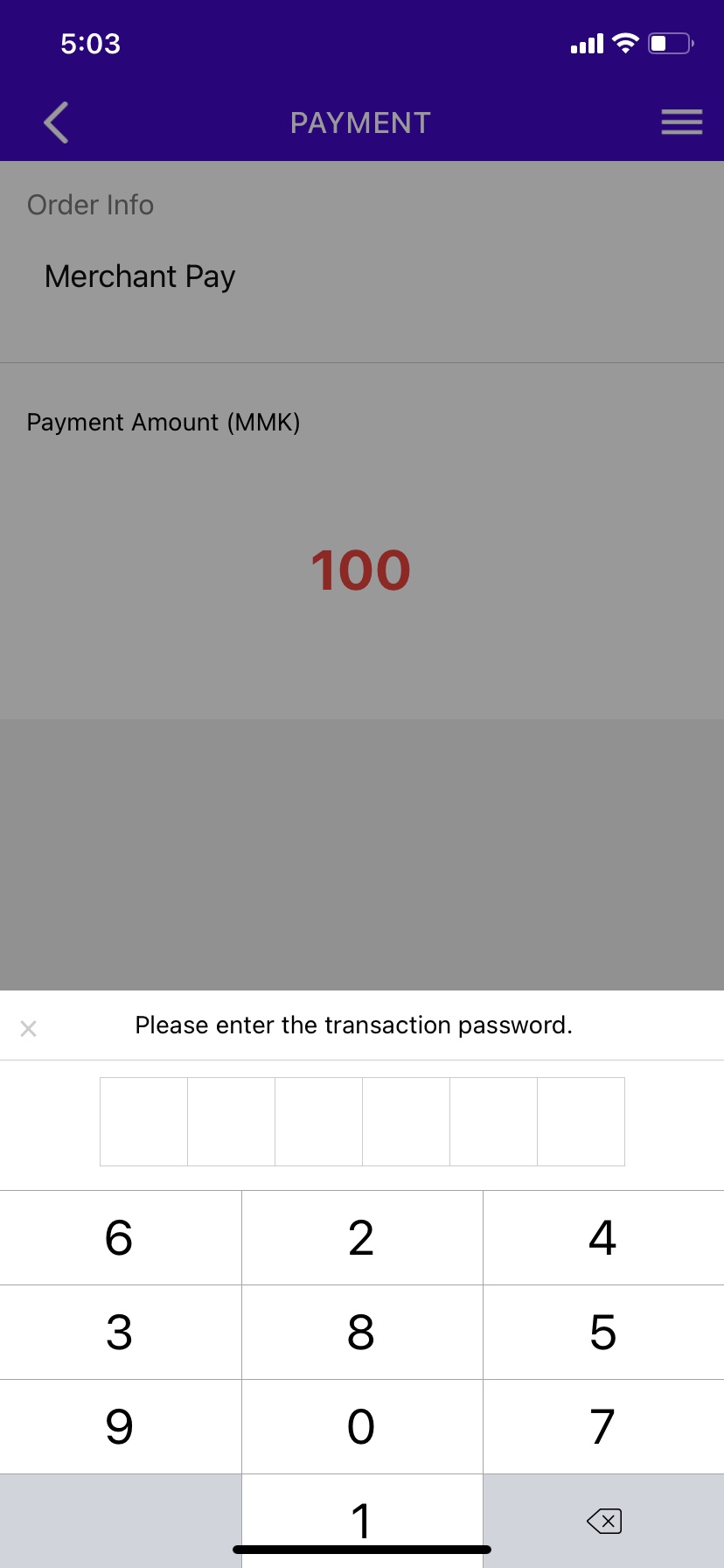 03. User enters payment password to confirm the transaction.
 -
04. Payment is completed and confirmation sent to the merchant and user.
Payer selects products within the Merchant's app, submits the order, and chooses Trusty payment.The Merchant's backend calls the Unified Order API and the Trusty payment system returns appUrl to the Merchant's. Merchant's app get the appUrl to open Trusty app,The Payer enters their payment password and confirms payment in Trusty.
How to set up Trusty Pay
In this scenario, besides the basic parameter settings, including Parameters needs to be applied, API key configuration and Certificate configuration.
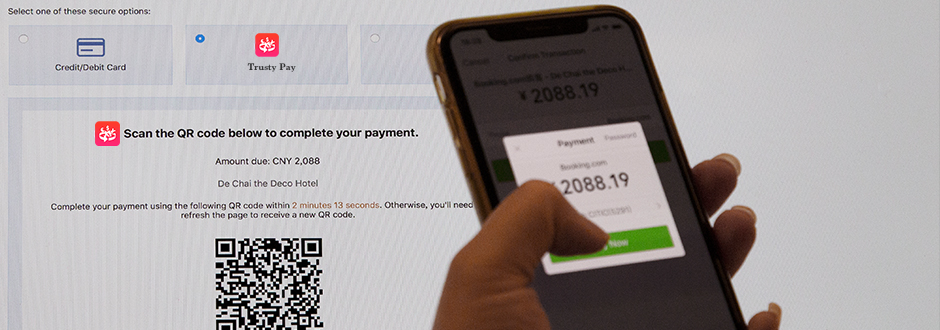
Users use Trusty's "Scan" feature to scan a payment code generated by a merchant on a web page to make a payment.
"Web payments allows order information to be embedded in a unique QR code. By scanning the code in Trusty, users complete the payment after passing the security checks.
How to set up Trusty Pay
Merchants have access to this feature by default after signing up with Trusty Pay.
User payment flows
-
01. User goes to 'Scan QR Code' in Trusty and scans merchant's QR Code and enters payment password to confirm the transaction.
-
02. Payment is completed and confirmation sent to the merchant and user.
-
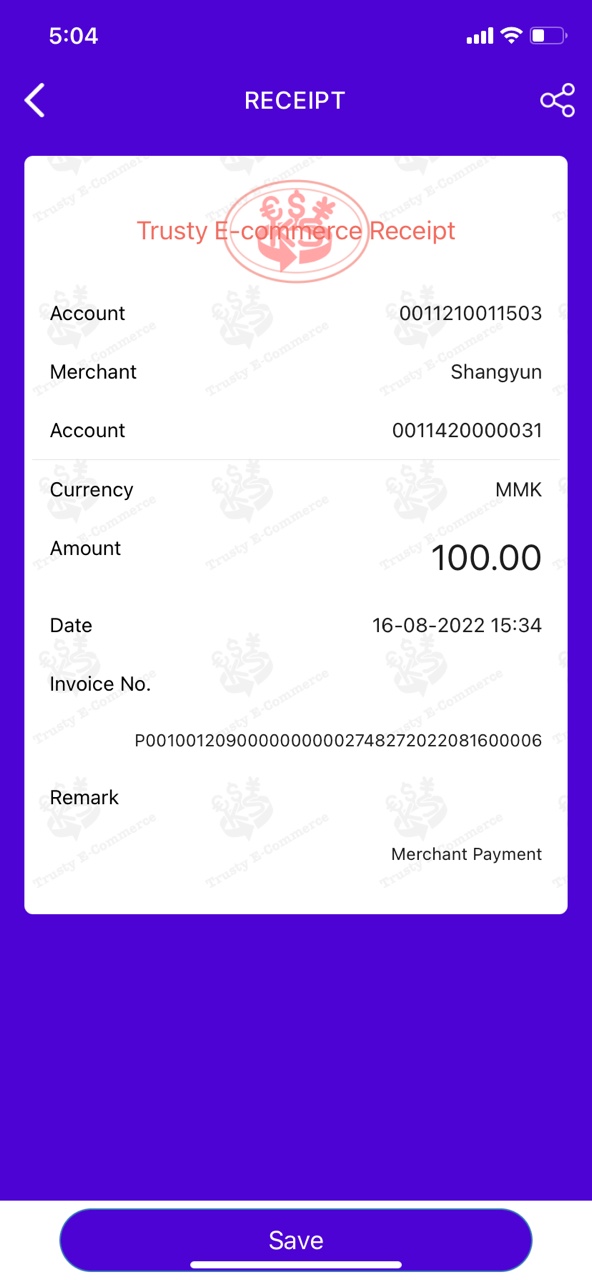 03. After the payment is completed, the user can save the invoice.