Native Payment
Product Overview
Native Payment means that the merchant generates a collection QR code corresponding to the order according to the order information, and the user opens the Trusty Pay client and selects + in the top right corner > Scan to scan the payment code to complete the payment.
Native Payment is applicable to both online and offline scenarios. Offline scenarios usually refer to offline restaurants and convenience stores, etc. while online scenarios refer to Trusty Pay collection on PC websites.
The merchant can display the collection QR code on the offline POS or screen or on the online PC website for users to scan.
|
Application Scenario |
Scenario Description |
Problem to Fix |
|---|---|---|
|
Offline restaurants and convenience stores, etc. |
The merchant generates a QR code corresponding to a single order on the POS machine and shows the QR code to the user, and then the user completes the payment after scanning the QR code through the Trusty Pay client. |
Meeting the requirement of the offline Trusty Pay checkout scenario, and providing solutions for some POS machines without any code scanning device |
|
Online PC websites |
The merchant's online PC mall generates a collection QR code based on the specific amount of the order placed by the user and displays it on the PC webpage. The user scans the QR code thorough the Trusty Pay client to complete the payment, and the merchant displays the order payment result on the PC webpage. |
Since Trusty Pay does not provide a PC client, this product can solve the problem of accessing Trusty Pay in PC scenarios |
API List
|
Feature List |
Description |
|---|---|
|
the merchant server first calls the [Unified Order API] to generate a prepayment order. The response field 'appUrl' to create a QR Code. |
|
|
Inquire the Pay and Refund result. |
|
|
The Merchant can refund the Payer via this API. |
|
|
After completing payment/refund, the Trusty payment system will send the payment/refund result to the Merchant. |
Business Sequence Chart
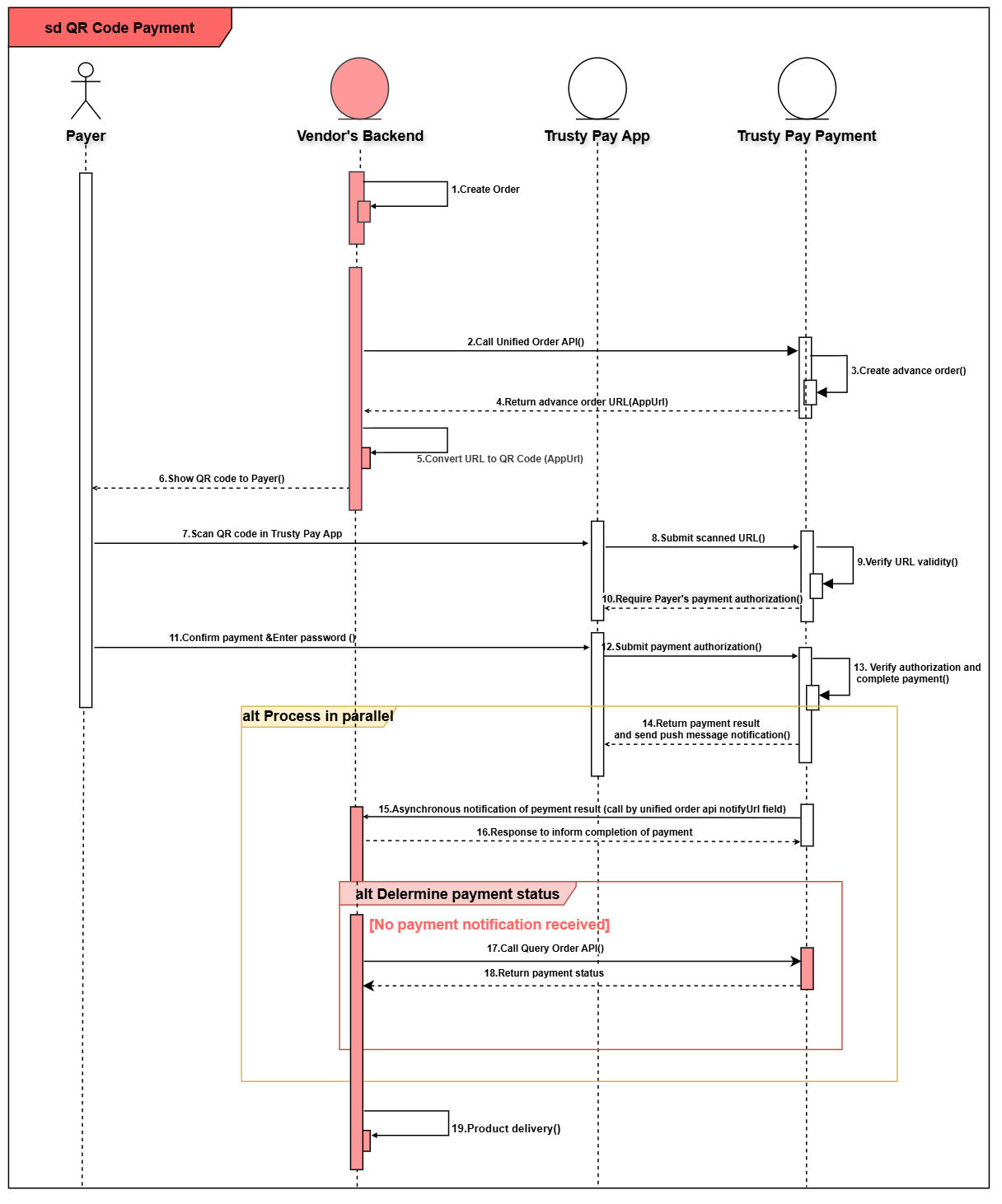
Service steps:
-
The Merchant's backend creates an order based on the product selected by the Payer.
-
The Payer confirms payment and the Merchant calls the Trusty payment system 【 Unified Order 】 to create an advance payment transaction.
-
Trusty payment system creates an advance transaction bill upon receiving this request, and returns appUrl.
-
The Merchant’s backend creates a QR Code based on appUrl.
-
The Payer opens “Scan QR Code” in Trusty Pay App and scans the QR code. The scanned data is sent to the Trusty payment system from the Payer's Trusty Pay App.
-
The Trusty payment system receives the request from Trusty Pay App and verifies the URL. If the URL is verified to be valid, payment is initiated and requires the Payer's authorization.
-
The Payer enters their payment password and confirms payment in Trusty Pay App. The payment authorization is submitted to the Trusty payment system from Trusty App.
-
The Trusty payment system completes the transaction based on the Payer's authorization.
-
The Trusty payment system returns the transaction result to the Payer's Trusty Pay via SMS after the payment is done. The Payer can view the payment result in their Trusty Pay App.
-
The Trusty payment system sends an asynchronous message to inform the Merchant's backend of the payment result. Then Merchant's backend replies to inform the Trusty payment system the payment is completed.
-
The Merchant’s backend polls the 【 Query Order API 】 if no payment message is received.
-
The Merchant confirms the order and delivers products to the Payer.
Development Guidelines
Procedure: Submit a pre-order request for APP payment through this interface, obtain the tradeNo to call payment.
1. Merchant backend
JAVA :
@Test
public class callTrustyPayApi {

    //Trusty Pay App ID
    String appId = "gxIRTg7qHCSCAU15" ;
    //Merchant ID
    String mchntId = "1006";
    // Merchant Key
    String key = "Mc1GG7C3o5SEvdTUYgUuagXhgh1WfszR";
    // MD5 or HMACSHA256
    String signType = "MD5";


    // Get the random string
    String nonceStr = "20260101011232321231322";

    Map< String, String> unifiedOrderParams = new HashMap();
    unifiedOrderParams.put("app_id", appId);
    unifiedOrderParams.put("mchnt_id", mchntId);
    unifiedOrderParams.put("nonce_str", nonceStr);
    unifiedOrderParams.put("sign_type", signType);
    unifiedOrderParams.put("body", "Ipadmini16G white");
    unifiedOrderParams.put("detail", "");
    // Trusty Pay result notification URL. Check [Notification API]
    // The merchant notification URL must be accessible by external networks.
    unifiedOrderParams.put("notifyUrl", "https://www.merchant.backend.com/callback");
    // Return to the merchant APP payment order result page
    unifiedOrderParams.put("frontendUrl", "merchant-app://merchantxxx/pay-result.");
    unifiedOrderParams.put("tradeNo", "OD202601010000000001");
    unifiedOrderParams.put("timeExpire", "30");
    unifiedOrderParams.put("totalAmount", "10000");
    unifiedOrderParams.put("trnCcy", "MMK");
    unifiedOrderParams.put("tradeType", "NATIVE");

    // 1. Sort parameter names in ascending alphabetical order based on their ASCII encoded names
    Set< String> keySet = unifiedOrderParams.keySet();
    String[] keyArray = keySet.toArray(new String[keySet.size()]);
    Arrays.sort(keyArray);

    // 2. Sort ASCII code of parameter names by lexicographical sequence based on the format of "key=value"
    StringBuilder sb = new StringBuilder();
    for (String k : keyArray) {
        // Empty parameter values are excluded in the signature;
        if (unifiedOrderParams.get(k).trim().length() > 0)
        {
            sb.append(k).append("=").append(unifiedOrderParams.get(k).trim()).append("&");
        }
    }
    // 3. Join API Key
    sb.append("key=").append(key);

    // System.out.println(sb.toString());
    //above: app_id=gxIRTg7qHCSCAU15&body=Ipadmini16G white&frontendUrl=your_app_scheme://your_app_host&mchnt_id=1006
       &nonce_str=20260101011232321231322
       ¬ifyUrl=https://www.merchant.backend.com/callback&sign_type=MD5&timeExpire=30&totalAmount=10000&
       &tradeNo=OD202601010000000001&tradeType=APP&trnCcy=MMK&key=Mc1GG7C3o5SEvdTUYgUuagXhgh1WfszR


    // 4. Signature with MD5 or HMACSHA256 ,and convert all result chars to upper case
    String sign = signature(sb.toString(), signType);

    // System.out.println(sign);
    // MD5 signature above: 31423A9CA4D6FD7DB467EC76521A3FE6

    // 5. Add signature to the request
    unifiedOrderParams.put("sign", sign);

    // 6. Send request
    String url = "http://xxxxx/openapi/v1/trusty/unifiedorder";
    HttpHeaders headers = new HttpHeaders();
    headers.setContentType(MediaType.APPLICATION_JSON);
    HttpEntity< Map< String, String>> httpEntity = new HttpEntity< >(unifiedOrderParams,headers);
    ResponseEntity< Map> responseEntity = restTemplate.exchange(url, HttpMethod.POST, httpEntity, Map.class);

   // 7. Process the response
   // ....
   // 8. return appUrl to  create QR code.
   //Display the collection QR code on the offline POS or screen or on the online PC website for users to scan.
}
2. Generate QR code rules
Corresponding link format: "00020101021226500015com.mmqrpay.www011522370800000638802080002136152048021530310454076060.005802MM5914... ". Merchants are requested to call the third-party library to generate MMQR code images appUrl.
For example,"00020101021226500015com.mmqrpay.www011522370800000638802080002136152048021530310454076060.005802MM5914FairPrice Taxi6006Yangon61053457662310121OD13000000000450890010802PA64350002MY0114FairPrice Taxi0207ရန်ကုန်63044A9B" the will generate a QR code as shown in the image.